

Blog
Windows 11 Home vs Pro: What’s the Difference and Which One Should You Get?

Published: September 27, 2026 | Updated: October 5, 2026
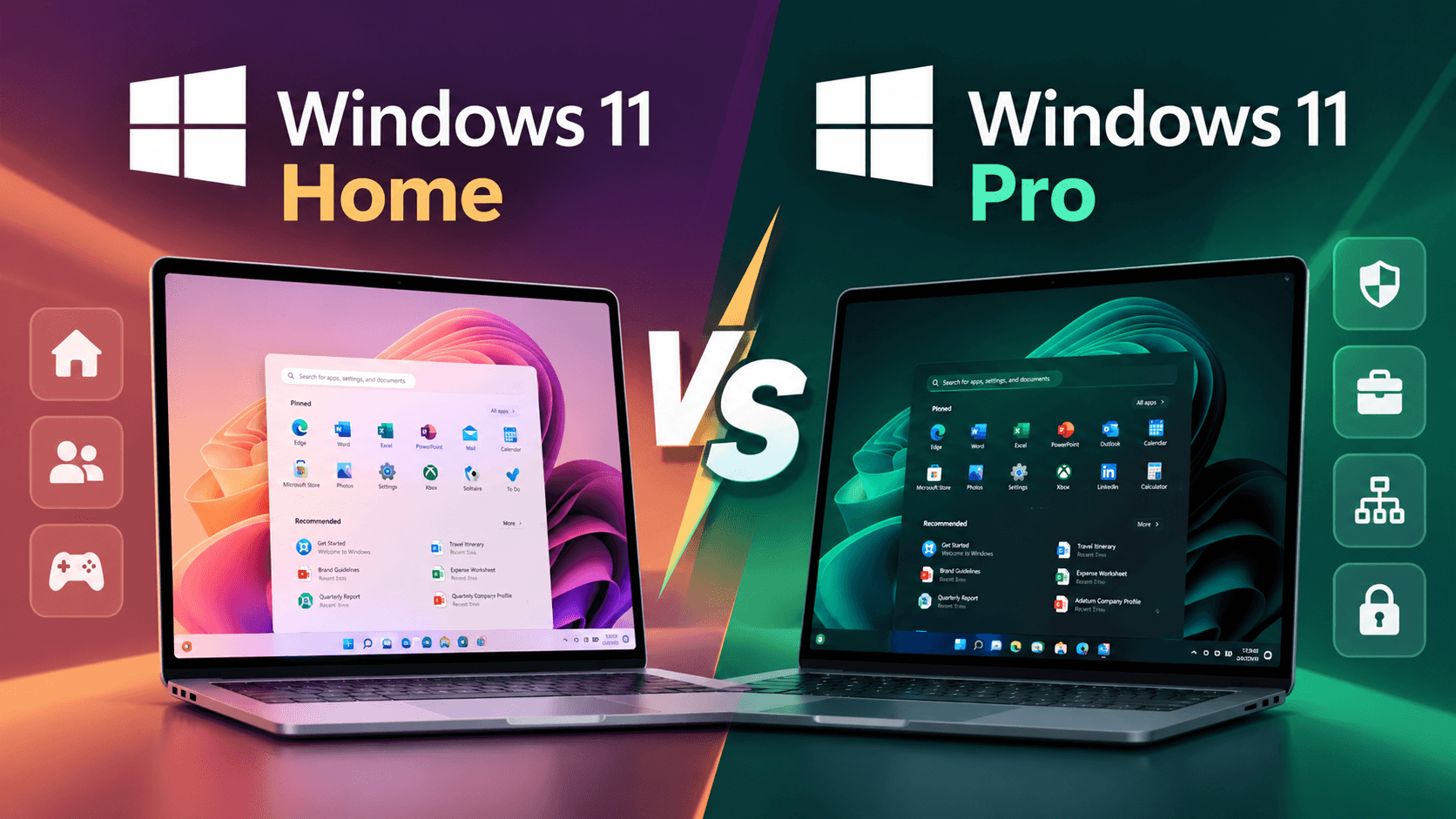
In the Windows 11 Home vs Pro decision, the main difference is that Pro adds business-grade security, virtualization, remote access and device management tools on top of everything Home already does. Windows 11 Home is built for personal use: browsing, gaming, schoolwork and everyday productivity. Windows 11 Pro is built for professionals, developers and businesses that need BitLocker, Hyper-V, Windows Sandbox, Remote Desktop hosting, Group Policy or domain join.
When people compare Windows Pro vs Home, the real question is not which edition is “better” but which features you will actually use. Pro has more features, but it isn’t faster, and many PC owners never touch the extra tools. This guide compares the two editions feature by feature, explains who each one is for, and helps you decide whether you need Windows 11 Home or Pro, with upgrade steps and license options along the way.
Windows 11 Home vs Pro: Quick Answer
Choose Windows 11 Home if the PC is for personal use: browsing, streaming, gaming, schoolwork and Microsoft Office. It runs the same apps at the same speed and receives the same security updates as Pro.
Choose Windows 11 Pro if you need any of these: full BitLocker encryption, Remote Desktop hosting, Hyper-V, Windows Sandbox, Group Policy, domain or Microsoft Entra ID join, or more than 128 GB of RAM.
Not sure yet? Start with Home. You can upgrade Windows 11 Home to Pro later with a Pro key, without reinstalling or losing files.
Windows 11 Home vs Pro at a Glance
| Feature | Windows 11 Home | Windows 11 Pro |
|---|---|---|
| Core Windows 11 experience (Start, Snap layouts, apps, Copilot) | ✓ | ✓ |
| Windows Security, Windows Hello, Secure Boot, TPM 2.0 | ✓ | ✓ |
| Gaming features (DirectX 12 Ultimate, Auto HDR, DirectStorage) | ✓ | ✓ |
| Windows Subsystem for Linux (WSL) | ✓ | ✓ |
| Device encryption (on supported hardware) | ✓ | ✓ |
| Full BitLocker management and BitLocker To Go | — | ✓ |
| Remote Desktop host (let others connect to this PC) | — | ✓ |
| Hyper-V virtualization | — | ✓ |
| Windows Sandbox | — | ✓ |
| Group Policy Editor (gpedit.msc) | — | ✓ |
| Active Directory domain join / Microsoft Entra ID join | — | ✓ |
| Mobile device management (Intune/MDM), Assigned Access (kiosk mode) | — | ✓ |
| Maximum RAM | 128 GB | 2 TB |
| Maximum CPUs | 1 socket, up to 64 cores | 2 sockets, up to 128 cores |
| Microsoft retail price (US) | $139 | $199 (upgrade from Home: $99) |
Feature availability can depend on your hardware, Windows version and region. Microsoft’s official Windows 11 Home vs Pro comparison has the full, current list.
What Is Windows 11 Home?

Windows 11 Home is the standard consumer edition of Windows 11 and the version preinstalled on most laptops and desktops sold for personal use. It includes the full modern Windows experience: the redesigned Start menu, Snap layouts, Microsoft Edge, the Microsoft Store, Copilot features, Xbox and gaming features, and built-in Windows Security antivirus.
For web browsing, streaming, gaming, Microsoft Office, online classes and general productivity, Home has everything you need. It also receives the same security updates and feature updates as Pro.
Who Should Choose Windows 11 Home?
If you’re wondering what type of Windows 11 you should get, Home is usually the right choice for:
- Students who need Office, a browser, and tools for coursework.
- Gamers, since gaming performance and features are identical on both editions.
- Home users who use their PC for entertainment, email, photos and shopping.
- Casual users who don’t need virtual machines, remote hosting or business management tools.
Ready to buy? A Windows 11 Home Retail Key can usually move to a new PC later, while the Windows 11 Home OEM Key is the lowest-cost option for a PC you will keep.
What Is Windows 11 Pro?
Windows 11 Pro includes everything in Home, plus a set of tools aimed at professionals, power users and small-to-medium businesses. It’s the minimum edition most workplaces require, because it can be joined to a company network and managed centrally.
What Is Included in Windows 11 Pro?
On top of all Home features, Windows 11 Pro adds:
- BitLocker full-disk encryption with complete management options, plus BitLocker To Go for USB drives.
- Remote Desktop hosting, so you can connect to your PC from another device.
- Hyper-V, Microsoft’s built-in virtual machine platform.
- Windows Sandbox, a disposable desktop for testing untrusted files and apps.
- Group Policy Editor for detailed control over Windows settings and updates.
- Domain and Microsoft Entra ID join for connecting to an organization’s network and resources.
- Device management through Microsoft Intune or other MDM tools, plus Assigned Access (kiosk mode).
- Higher hardware limits: up to 2 TB of RAM and two CPUs.
Who Should Choose Windows 11 Pro?
Windows 11 Pro is the right choice when you:
- Store client, financial or business data on a laptop that should be encrypted
- Want to reach your PC remotely with Remote Desktop
- Run virtual machines with Hyper-V or test files in Windows Sandbox
- Need to join a company domain or Microsoft Entra ID
- Manage several PCs with Group Policy or Intune
- Build a workstation with more than 128 GB of RAM
Windows 11 Home vs Pro: 10 Key Differences
1. BitLocker and Advanced Encryption
BitLocker encrypts your entire drive, so if a laptop is lost or stolen, nobody can read the data without your credentials or recovery key. Windows 11 Home offers a simpler device encryption feature on supported hardware, but it has almost no settings. Pro gives you the full BitLocker control panel: choose which drives to encrypt, manage recovery keys, set PIN requirements and encrypt removable drives with BitLocker To Go. For anyone handling client data or company files, this is often the main reason to choose Pro.
Verdict: Home is fine for personal laptops with device encryption; choose Pro if you need full BitLocker control or encrypted USB drives.
2. Remote Desktop
Both editions can use the Remote Desktop app to connect to other computers. Only Windows 11 Pro can act as a Remote Desktop host, meaning other devices can connect to it. If you want to access your office PC from home, or manage a PC remotely without third-party tools, you need Pro on the computer you are connecting to.
Verdict: Pro wins if you want to connect to this PC remotely; Home is enough if you only connect out to other machines.
3. Hyper-V Virtualization
Hyper-V lets you run full virtual machines, such as a Linux server, an older version of Windows, or an isolated test environment, directly on your PC. It’s widely used by developers, IT professionals and testers. Home users can still run virtual machines with third-party software such as VirtualBox or VMware Workstation Pro, but Hyper-V and its management tools are only available on Pro and higher editions.
Verdict: Choose Pro for built-in virtual machines; Home users can rely on third-party virtualization.
4. Windows Sandbox
Windows Sandbox opens a lightweight, isolated copy of Windows in a window. You can run a suspicious installer or open an unknown file inside it, and everything is wiped the moment you close it. It’s a quick, safe way to test software without risking your main system, and it’s available on Pro but not on Home.
Verdict: Pro is worth it if you often test unknown software; most home users never need Sandbox.
5. Group Policy
The Local Group Policy Editor (gpedit.msc) gives you access to thousands of settings that aren’t in the normal Settings app, such as controlling Windows Update behavior, locking down features, restricting USB storage, or configuring security rules. Organizations use Group Policy to apply the same settings to many PCs at once. Home users can change some of these settings through the registry, but that is slower and riskier.
Verdict: Choose Pro if you want fine control over updates and security settings without editing the registry.
6. Domain and Organizational Management
Windows 11 Pro can join a traditional Active Directory domain or a cloud-based Microsoft Entra ID (formerly Azure AD) organization. That lets a company control sign-in, apply policies and give employees access to shared files, printers and apps. Windows 11 Home cannot join a domain, which is why most employers won’t accept Home PCs on their network.
Verdict: Any PC that must join a work network needs Pro.
7. Advanced Device Management
Pro supports mobile device management (MDM) through tools like Microsoft Intune, Windows Update for Business for controlling when updates install, and Assigned Access for locking a PC to a single app (useful for kiosks, reception desks and point-of-sale screens). These features matter to anyone managing more than a handful of computers.
Verdict: Pro is the standard for managed business devices; Home has no centralized management.
8. RAM and Hardware Limits
Windows 11 Home supports up to 128 GB of RAM and a single CPU with up to 64 cores. Windows 11 Pro supports up to 2 TB of RAM and two physical CPUs with up to 128 cores in total. For almost every home or gaming PC, the Home limits are far beyond what you’ll ever install. Only high-end workstations used for 3D rendering, large datasets or many virtual machines come close.
Verdict: Home’s limits are plenty for nearly everyone; only extreme workstations need Pro.
9. Business and Enterprise Features
Beyond the individual tools above, Pro is the entry point into Microsoft’s business ecosystem. It’s the edition that works with Microsoft 365 business plans for device management, supports enterprise sign-in options, and can be upgraded to Windows Enterprise through volume licensing. Businesses that plan to grow usually standardize on Pro from the start.
Verdict: For business PCs, Pro is the sensible baseline.
10. Price and Licensing
At Microsoft’s retail prices in the US, Windows 11 Home costs $139 and Windows 11 Pro costs $199. Upgrading an existing Home installation to Pro through the Microsoft Store costs $99. Prices can change, so check Microsoft’s store for current figures. Genuine keys from our Windows 11 range usually cost far less. Before paying more for Pro, check whether you will actually use any of the Pro-only features listed above.
Verdict: Pay for Pro only when you need at least one Pro feature; otherwise Home is the better value.
Windows 11 Home vs Pro for Different Types of Users
For Students
Windows 11 Home covers schoolwork, research, Microsoft Office, video calls and even most programming courses. Choose Pro only if your course specifically requires Hyper-V, Remote Desktop hosting, or joining a university-managed domain. Some schools also provide Windows Education licenses through their IT department, so check before you buy.
For Gamers
Gaming performance is the same on both editions. DirectX 12 Ultimate, Auto HDR, DirectStorage, Game Mode and the Xbox app are all included in Home. None of the Pro-only features improve frame rates, so Home is the sensible choice for a gaming PC.
For Developers
Many developers are surprised to learn that WSL (Windows Subsystem for Linux) works on Windows 11 Home, and Docker Desktop can run on Home using the WSL 2 backend. However, Pro is the better fit if you need Hyper-V virtual machines, Windows Sandbox for testing builds, Remote Desktop access to your workstation, or more than 128 GB of RAM for heavy workloads.
For IT Professionals
IT professionals almost always need Pro. Group Policy, Remote Desktop hosting, Hyper-V labs, domain join and MDM enrollment are everyday tools, and you can’t test or support business environments properly from a Home PC.
For Small Businesses
For company-owned computers, Windows 11 Pro is the practical standard. BitLocker protects business data on lost laptops, Entra ID join and Intune let you manage devices centrally, and Group Policy keeps settings consistent. For several PCs, a multi-device license such as Windows 11 Pro 5PC can simplify licensing.
For Home Users
For a family PC or personal laptop, Windows 11 Home is enough. You get the same interface, security updates, antivirus, parental controls through Microsoft Family Safety, and access to the same apps as Pro users.
Windows 11 Home or Pro: Which Should You Get?
Use this table to decide based on what you actually need:
| If you need… | Choose |
|---|---|
| Web browsing, streaming and entertainment | Home |
| Gaming | Home |
| School or college work | Home |
| Microsoft Office and everyday productivity | Home |
| WSL or Docker for basic development | Home (Pro optional) |
| Full BitLocker encryption for sensitive data | Pro |
| Remote Desktop access to this PC | Pro |
| Hyper-V virtual machines | Pro |
| Windows Sandbox | Pro |
| Group Policy control | Pro |
| Joining a work domain or Microsoft Entra ID | Pro |
| More than 128 GB of RAM or two CPUs | Pro |
If every item you need falls under Home, buy a Windows 11 Home key. If even one important item falls under Pro, go straight to a Windows 11 Pro key. Buying Pro up front usually costs less than buying Home and upgrading later.
Is Windows 11 Pro Better Than Home?
Windows 11 Pro has more features than Home, but it is only “better” if you use those features. Pro doesn’t make your PC faster, doesn’t improve gaming, and doesn’t add extra protection against everyday malware, because both editions use the same Windows Security antivirus and receive the same updates.
So, do you need Windows 11 Pro? You do if you rely on BitLocker management, Hyper-V, Windows Sandbox, Remote Desktop hosting, Group Policy or a work domain. If none of those apply, Home gives you the same Windows 11 experience for less money.
Windows 11 Home vs Pro Performance
Both editions run on the same Windows 11 core, so performance is effectively identical for everyday tasks. Boot time, app speed, file transfers and gaming frame rates are the same on the same hardware.
The only performance-related differences are the hardware ceilings. Home is limited to 128 GB of RAM and one CPU, while Pro supports up to 2 TB of RAM and two CPUs. This only matters on high-end workstations. Running Hyper-V virtual machines on Pro will use extra RAM and CPU, but that’s the cost of running VMs, not of the Pro edition itself.
In short, choose an edition for its features, not for speed.
Windows 11 Home vs Pro Install Size
There is no meaningful difference in install size between Windows 11 Home and Pro. Both come from the same installation media: the official Windows 11 ISO contains both editions, and your product key decides which one is activated. Microsoft’s minimum storage requirement is 64 GB for either edition.
A fresh installation typically uses around 25 to 35 GB, but the real figure depends on the build, cumulative updates, drivers, language packs, the page file and hibernation file. Pro-only components such as Hyper-V and Windows Sandbox only take up extra space when you enable them. Plan for at least 128 GB of storage, and preferably more, so Windows has room for updates.
Windows 11 Home vs Pro System Requirements
Both editions have the same minimum hardware requirements, so the choice never depends on your PC’s specifications:
| Component | Windows 11 Home and Pro |
|---|---|
| Processor | 1 GHz or faster, 2 or more cores, compatible 64-bit CPU |
| Memory | 4 GB RAM |
| Storage | 64 GB or more |
| Firmware | UEFI with Secure Boot capability |
| Security chip | TPM 2.0 |
| Graphics and display | DirectX 12 compatible with WDDM 2.0 driver; 720p display larger than 9 inches |
These are minimums, not a promise of smooth performance. For comfortable everyday use, plan on 8 GB of RAM and an SSD, and 16 GB or more if you will run Hyper-V virtual machines on Pro. Run Microsoft’s PC Health Check app to confirm your PC qualifies before buying either edition.
Windows 11 Home vs Pro License Types: Which Key Should You Buy?
Once you have chosen an edition, pick the license type. Each one activates the same Windows; the difference is price and flexibility:
| License type | Transfer to a new PC | Best for | Home | Pro |
|---|---|---|---|---|
| Retail | Usually yes | Users who may replace their PC | Home Retail | Pro Retail |
| OEM | No, stays with the first PC | New builds and PCs you will keep | Home OEM | Pro OEM |
| Phone activation | Not guaranteed | Lowest cost for one PC | Home Phone | Pro Phone |
| Multi-PC | Within the activation limit | Small offices and families | — | Pro 5PC |
If you choose a phone activation key, the Bcdkey Get Confirmation ID tool completes activation in a few minutes.
What About Windows 10 Home vs Pro?
The Windows 10 Home vs Pro split works almost exactly like Windows 11: Pro adds BitLocker, Remote Desktop hosting, Hyper-V, Group Policy and domain join. Windows 10 reached end of support on October 14, 2025, so Windows 11 is the safer choice on any PC that meets its requirements. If you still need Windows 10 for older hardware or software, browse our Windows 10 keys or read how to download, install and activate Windows 10 Pro.
Should You Upgrade from Windows 11 Home to Pro?
Upgrading makes the most sense when it solves a real problem. It is worth it when you:
- Start working with client data that should be encrypted with BitLocker
- Need to reach your PC from another location with Remote Desktop
- Begin development or IT work that needs Hyper-V or Windows Sandbox
- Join an employer’s domain or Microsoft Entra ID
If none of these apply, staying on Home costs nothing and changes nothing about speed, gaming or security updates.
How to Upgrade Windows 11 Home to Pro
Yes. You can upgrade Windows 11 Home to Pro without reinstalling Windows or losing your files and apps:
- Open Settings → System → Activation.
- Under Upgrade your edition of Windows, select Change product key.
- Enter a valid 25-character Windows 11 Pro product key and click Next.
- Follow the prompts. Windows installs the Pro features and restarts, which usually takes a few minutes.
Alternatively, you can buy the upgrade from the Microsoft Store through the same Activation page. Back up important files before any edition change, just in case.
A few tips make the upgrade go smoothly:
- Install pending Windows updates and restart before changing the key
- Use a Windows 11 Pro key; Home keys and Windows 10 Home keys will not upgrade the edition
- If activation shows a phone prompt, run
slui 4and use the Get Confirmation ID tool - Sign in with a Microsoft account afterwards so the Pro digital license is linked to it
If the upgrade does not complete, open a support ticket with a screenshot and our team will help.
Can You Downgrade Windows 11 Pro to Home?
There is no built-in way to downgrade Windows 11 Pro to Home while keeping your apps and settings. To switch to Home, you need to back up your files, perform a clean installation of Windows 11, and activate it with a valid Windows 11 Home key. A Pro license can’t normally be used to activate Home, so make sure you have the right key before reinstalling.
FAQ About Windows 11 Home vs Pro
What is the difference between Windows Home and Pro?
Windows Home is designed for personal use, while Windows Pro adds BitLocker encryption, Remote Desktop hosting, Hyper-V, Windows Sandbox, Group Policy, domain join and device management for professional and business use. Pro also supports more RAM and CPUs.
Is Windows 11 Pro better than Home?
Pro has more features, but it isn’t faster or better for everyday use. It’s only worth it if you need its business, security or virtualization tools.
Do I need Windows 11 Pro?
You need Pro if you use Hyper-V, Windows Sandbox, Remote Desktop hosting, Group Policy, full BitLocker, or need to join a work domain. Otherwise, Home is enough.
Should I get Windows 11 Home or Pro?
Get Home for gaming, school and personal use. Get Pro for work PCs, development with virtual machines, IT administration or small business computers.
Which version of Windows 11 should I install?
Install the edition that matches your product key. The same Windows 11 installation media covers both Home and Pro, and the key determines which edition is activated.
Is Windows 11 Home good enough for gaming?
Yes. Windows 11 Home includes all gaming features, including DirectX 12 Ultimate, Auto HDR, DirectStorage and Game Mode. Pro gives no extra gaming performance.
Is Windows 11 Pro faster than Home?
No. Both editions share the same core and perform the same on identical hardware. Pro only supports larger hardware configurations.
Can I upgrade Windows 11 Home to Pro?
Yes. Go to Settings → System → Activation, select Change product key, and enter a Windows 11 Pro key. Your files and apps stay in place.
What is the difference between Windows 10 Home and Pro?
The differences mirror Windows 11: Windows 10 Pro adds BitLocker, Remote Desktop hosting, Hyper-V, Group Policy and domain join. Note that Windows 10 reached end of support on October 14, 2025.
Is a Windows 11 Pro key more expensive than Home?
Yes, usually. Pro costs more because it adds business features; see our Windows 11 range for current options, and our FAQs for delivery and activation questions.
Does Windows 11 Pro use more storage than Home?
Not noticeably. Both editions install from the same image and use roughly the same space. Optional Pro features like Hyper-V only use extra space once you enable them.
Final Verdict: Windows 11 Home vs Pro
Windows 11 Home delivers the complete Windows 11 experience for personal computing, gaming, education and everyday productivity. Windows 11 Pro adds the tools that professionals and businesses rely on: full BitLocker encryption, Hyper-V, Windows Sandbox, Remote Desktop hosting, Group Policy, domain join and centralized device management.
If you don’t need any of those Pro-only features, Home is the smart, cost-effective choice. If you work with virtual machines, manage devices, need remote access to your PC or handle sensitive business data, Pro is worth it. The choice can be summarized simply:
- Choose Windows 11 Home for gaming, school and everyday personal use.
- Choose Windows 11 Pro for work PCs, virtual machines, remote access and business data.
List the features you will use this year, not someday, and let that list decide.
Ready for a straightforward home PC? Explore Windows 11 Home.
Need business tools on your PC? View Windows 11 Pro.