Blog
How to Find Your Windows Product Key (Windows 11, 10, 7)

Learning how to find Windows product key details is easier than most guides make it sound, and in many cases you do not need the key at all. Windows 10 and Windows 11 usually activate through a digital license tied to your hardware, so a reinstall often completes without you typing a single character.
Still, there are moments when the 25-character code matters: moving a retail license to a new PC, reinstalling Windows 7 on an old machine, troubleshooting activation, or simply keeping proper records. A missing product key is rarely lost; it is usually just filed somewhere unhelpful, like the recycling bin that took the box.
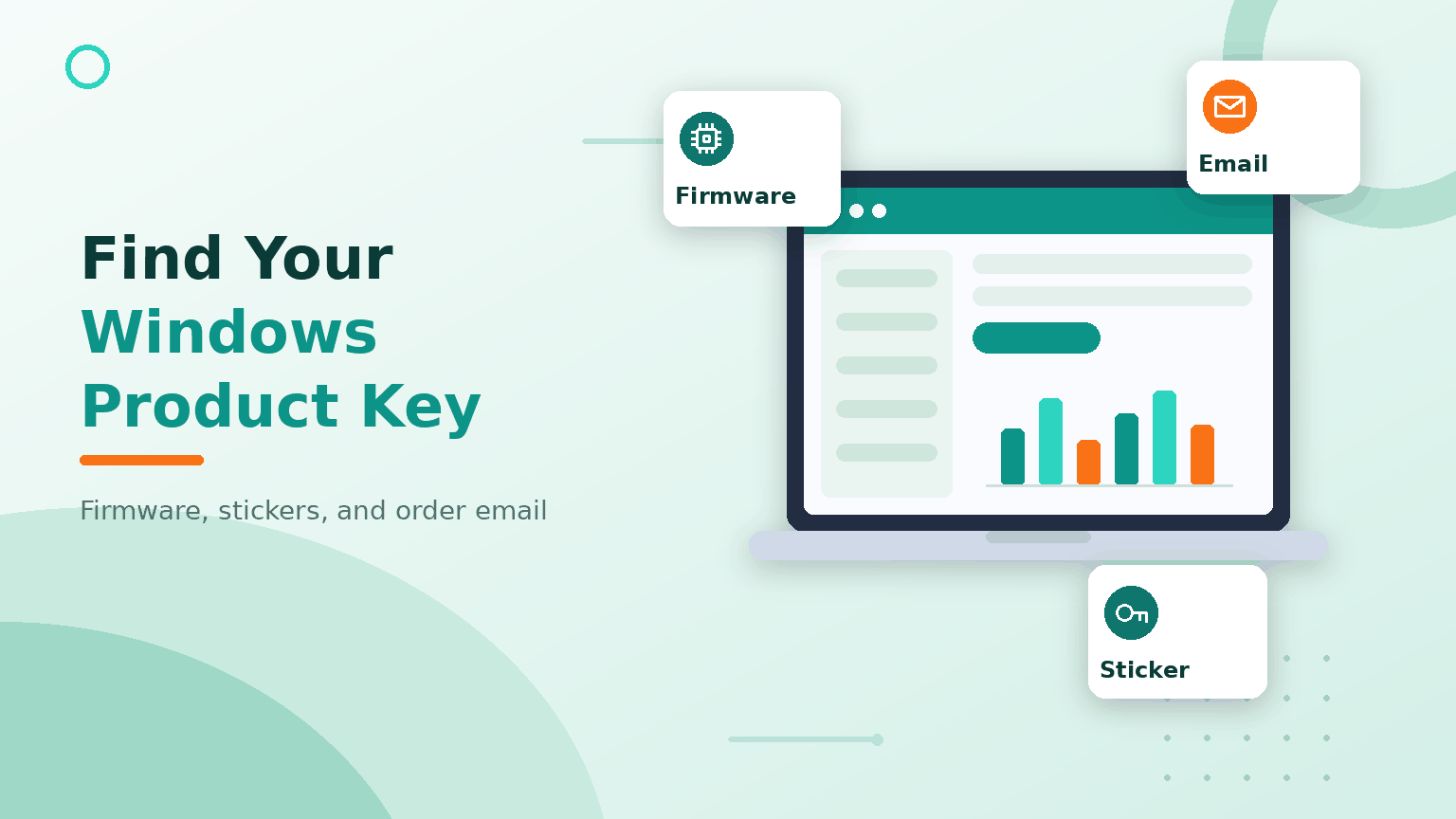
Where to look depends on how you got Windows: preinstalled by the manufacturer, bought in a box, or delivered by email from a retailer. Each route leaves the key in a different place.
This guide explains every reliable way to find your Windows product key on Windows 11, Windows 10 and Windows 7, with practical checks and beginner-friendly explanations along the way.
IMPORTANT: Treat a product key like a password. Never post it in forums, screenshots or support chats, because a leaked key can be blocked or used by someone else.
How to Find Windows Product Key: Quick Answer
Here is the full procedure, from fastest to slowest:
- Check whether you need a key at all: open Settings > System > Activation and look for "Windows is activated with a digital license."
- Open PowerShell (right-click Start > Terminal or Windows PowerShell).
- Run
(Get-CimInstance -ClassName SoftwareLicensingService).OA3xOriginalProductKeyto read any manufacturer key embedded in the firmware. - On Windows 10 or older, you can instead run
wmic path softwarelicensingservice get OA3xOriginalProductKeyin Command Prompt. - If the output is blank, your key was never stored in firmware; move on to physical and purchase records.
- Check for a Certificate of Authenticity (COA) sticker on the device or a key card inside the retail box.
- Search your email for the order confirmation from the retailer you bought the key from.
- Log in to your retailer account; Bcdkey customers can reopen every purchased key under My Account.
- For purchases made directly from Microsoft, check Order history in your Microsoft account.
- Run
slmgr /dlito see the last five characters of the key currently in use and match them against what you found. - Record the key somewhere safe, such as a password manager.
In simple terms: Check Activation → Query Firmware → Check Sticker → Search Email → Match with slmgr → Save the Key
Product Key, Digital License and Product ID: What Is the Difference?
Three similar-sounding things get mixed up constantly, and the confusion wastes more time than any command ever will:
| Term | What it is | Can it activate Windows? |
|---|---|---|
| Product key | A 25-character code in the form XXXXX-XXXXX-XXXXX-XXXXX-XXXXX that proves your license |
Yes |
| Digital license | An activation record tied to your hardware (and optionally your Microsoft account); no code to type | Yes, automatically |
| Product ID | An installation identifier shown in Settings and System properties (format like 00330-80000-00000-AA123) | No |
Microsoft states that activating Windows requires either a 25-character product key or a digital license. The Product ID, despite sitting right where you expect the key to be, activates nothing, and photographing it helps nobody.
For a deeper look at how digital entitlements and phone activation fit together, read our guide to Confirmation ID and phone activation for Windows and Office.
Which Method Fits Your Situation?
Pick your starting point from this table rather than trying everything in order:
| Method | What it finds | Best fit |
|---|---|---|
| PowerShell firmware query | The OEM key embedded by the manufacturer | Laptops and desktops that shipped with Windows 8, 10 or 11 preinstalled |
| Command Prompt (wmic) | The same firmware key | Windows 10 and older; removed from Windows 11 in 2026 |
| slmgr /dli | The last five characters of the key in use | Confirming which of several keys a PC is using |
| COA sticker or box | The printed retail or OEM key | Windows 7 machines and boxed copies |
| Email and retailer account | The key you purchased online | Digital purchases from Bcdkey or other retailers |
| Microsoft account order history | Keys bought from the Microsoft Store only | Direct Microsoft purchases |
| Registry (DigitalProductId) | An encoded value that rarely decodes to your real key | Last resort; usually disappointing |
If the machine runs Windows XP rather than a modern version, use our separate guide to finding a Windows XP Pro product key. That article covers XP-era tools, while this guide focuses on Windows 11, 10 and 7.
Method 1: Find the Key with PowerShell (Windows 11 and 10)
Most computers that shipped with Windows preinstalled carry the manufacturer’s product key inside the UEFI firmware, the modern replacement for the old BIOS. The key survives reinstalls, disk swaps and factory resets, which makes it the first place to look.
Open PowerShell as a normal user and run:
(Get-CimInstance -ClassName SoftwareLicensingService).OA3xOriginalProductKeyIf a key is embedded, it prints immediately in the familiar five-group format. Copy it carefully, including the hyphens.
READY CHECK: A blank result is normal, not an error. It means no key is stored in firmware, which is typical for self-built PCs, virtual machines, retail upgrades and systems activated by a digital license.
One caveat worth knowing: the firmware key is the edition the machine shipped with. If the laptop came with Windows 11 Home and you later upgraded to Pro, the firmware still holds the Home key, not your Pro license. Our Windows 11 Home vs Pro comparison explains how the two editions and their keys differ.
Method 2: Find the Key with Command Prompt (Windows 10 and Older)
On Windows 10, the classic command still works. Open Command Prompt and run:
wmic path softwarelicensingservice get OA3xOriginalProductKeyIt reads exactly the same firmware value as the PowerShell method, so use whichever window you already have open.
Do not be surprised when this fails on a current Windows 11 machine. Microsoft states that the WMIC command-line tool has been removed from supported versions of Windows 11 during 2026 and is no longer available as an optional feature, with PowerShell recommended as the replacement. Microsoft’s official WMIC removal notice has the full timeline.
If wmic returns "not recognized," nothing is wrong with your license. Switch to the PowerShell command in Method 1 and carry on.
Method 3: Check the Last Five Characters with slmgr
The Software Licensing Management Tool, slmgr, never reveals a full key, but it answers a different question: which key is this PC actually using?
Open Command Prompt or PowerShell and run:
slmgr /dliA dialog shows the Windows edition, part of the description and the last five characters of the active product key. Match those five characters against the keys in your records to identify which one is installed.
Two companion commands round out the picture:
slmgr /xpr— shows whether activation is permanentslmgr /dlv— shows detailed license information, including the activation channel (Retail, OEM or Volume)
The channel detail matters because retail and OEM keys follow different transfer rules, which we return to below.
Method 4: Look for a COA Sticker or Inside the Retail Box
Before firmware embedding became standard, the key traveled on paper. Windows 7 machines carry a Certificate of Authenticity (COA) sticker, a small label with the product key printed under the Microsoft branding.
Common hiding places include:
- The underside of a laptop
- Inside the battery compartment (on laptops with removable batteries)
- The top, side or rear panel of a desktop tower
- The power supply area on some branded desktops
On older laptops the sticker often lives on the underside, faded to the point of abstract art. If only part of the key is legible, note what you can read; combined with slmgr /dli, the last five characters sometimes confirm a partial match.
Boxed retail copies of Windows keep the key on a card or label inside the packaging. Microsoft’s official Find your Windows product key page confirms the box label and the COA as the two physical sources.
Keep in mind that Windows 7 reached end of support on January 14, 2020, so a found key gets the system activated but not protected. Our guide to activating Windows 7 in 2026 covers what still works on that system, including phone activation.
Method 5: Check Your Email and Retailer Account
For a digitally purchased key, the purchase record is the key. Search your inbox for the retailer’s name, "product key," "license" or the order number, and check the folder your email client files receipts into.
Where to look by purchase type:
- Bought from Bcdkey: every key you have ordered is stored permanently under My Account, alongside the original delivery email. If you cannot reach the account, open a support ticket with your order number.
- Bought from another authorized retailer: check the confirmation email or the retailer’s own digital locker.
- Bought from Microsoft directly: sign in to your Microsoft account and open Order history. Microsoft states it keeps key records only for purchases made through the Microsoft online store.
- Volume licensing (business): keys live in the organization’s licensing portal; ask your IT administrator rather than hunting on the device.
This is the one method that finds the key you actually bought rather than the key the machine shipped with, so for upgraded PCs it is usually the method that settles the matter.
Method 6: Check the Registry (and Why It Rarely Helps)
Plenty of older articles point to the registry value DigitalProductId under HKEY_LOCAL_MACHINESOFTWAREMicrosoftWindows NTCurrentVersion. The value exists, but it stores the key in an encoded binary format, which is the registry’s way of being helpful.
Decoding it requires a script or a third-party viewer, and on modern installs the decoded result is frequently a generic installation key rather than the unique key you purchased. Windows 10 and 11 setups that used a digital license never wrote your personal key there in the first place.
IMPORTANT: Be cautious with downloadable "key finder" tools. Some are legitimate, many are bundled with adware, and a tool that can read your license data can also transmit it. If you use one, download it only from the developer’s own site and treat the result as a hint to verify against slmgr /dli, not as proof of purchase.
In short: try the registry last, expect little, and prefer the firmware query and your purchase records.
Do You Even Need the Product Key?
Usually not, on Windows 10 and Windows 11. Both versions activate through a digital license once the hardware has been activated before, and the license reattaches automatically after a reinstall of the same edition.
To check your activation state:
- On Windows 11: open Settings > System > Activation.
- On Windows 10: open Settings > Update & Security > Activation.
- Read the Activation state line. "Windows is activated with a digital license" means no key entry is needed for a reinstall.
- If it says "linked to your Microsoft account," the Activation troubleshooter can also restore activation after a hardware change.
During a clean installation you can select "I don’t have a product key," choose the matching edition, and let the digital license activate Windows after setup. The step-by-step flow is covered in our Windows 11 activation guide and, for the older system, in Bcdkey’s guide to downloading, installing and activating Windows 10 Pro.
The key still matters when you move a retail license to a different PC, activate a machine that has never been activated, or document licenses across a small fleet.
How to Find Windows Product Key by Version: 11, 10 and 7
The same methods apply to each version, but the odds of success differ:
| Version | Where the key usually lives | Best first method |
|---|---|---|
| Windows 11 | Digital license; OEM key in UEFI firmware on preinstalled machines | PowerShell firmware query |
| Windows 10 | Digital license; firmware key on preinstalled machines | PowerShell or wmic |
| Windows 7 | COA sticker or retail box; nothing in firmware | Physical sticker check |
Finding a Windows 11 Product Key
Most Windows 11 systems never expose a typable key because activation rides on the digital license. The PowerShell query returns the factory key on preinstalled machines, and purchased upgrade keys live in your retailer account or email.
Windows 10 users planning a move should note that Microsoft ended mainstream Windows 10 support on October 14, 2025; our Windows 10 ESU guide explains the extended security update timeline before you decide where that old key fits.
Finding a Windows 10 Product Key
Windows 10 is the last version where both wmic and PowerShell work out of the box, so use whichever you prefer. Machines upgraded free from Windows 7 or 8.1 hold a digital license and have no unique retail key to find, which surprises many owners.
Finding a Windows 7 Product Key
Firmware queries return nothing on Windows 7 because key embedding arrived with Windows 8. Go straight to the COA sticker, the box or your purchase email. If the sticker is unreadable and no record survives, the honest answer is that the key is gone, and a fresh license for a modern Windows is the practical path forward.
What If You Cannot Find the Key Anywhere?
Sometimes every drawer, inbox and command comes up empty. Your options, in order of cost:
- Rely on the digital license: if Settings shows Windows as activated, reinstalling the same edition needs no key at all.
- Contact the seller: legitimate retailers keep order records; Bcdkey keys remain visible in My Account indefinitely.
- Buy a replacement license: a Windows 11 Pro key activates one PC with the Pro edition, suits power users and small businesses, and arrives by email within minutes. Home users who do not need Pro features can choose a Windows 11 Home retail key instead, which also activates a single PC.
- Several machines: the Windows 11 Pro 5PC key covers five separate computers under one purchase, which keeps record-keeping simple for a small office.
Match the key to the installed edition: a Home key will not activate Pro, and vice versa. If you plan to move the license between machines later, pick a Windows 11 Pro retail key, because retail licenses transfer to a new PC while OEM licenses stay married to the first machine they activate. More options are listed in the Windows 11 category.
Common Product Key Mistakes
1. Photographing the Product ID Instead of the Key
The Product ID in Settings looks official but activates nothing; only the 25-character key or the digital license counts.
2. Assuming the Firmware Key Matches Your Current Edition
The firmware holds the key the machine shipped with; after an edition upgrade, your real license lives in your purchase records.
3. Trusting a Registry Decode as Proof of Purchase
Decoded registry values are often generic installation keys; verify the last five characters with slmgr /dli before relying on one.
4. Downloading Key Finders from Unknown Sites
Bundled adware is common; use the built-in commands first and third-party tools only from their original developers.
5. Discarding the Old PC Before Saving Its License Details
Run the firmware query and note the activation channel before recycling a machine, because afterwards the information is unrecoverable.
Keep a Record: Product Key Checklist
Ten minutes of record-keeping now saves a frustrating afternoon later. Work through this once per PC:
| Requirement | Done |
|---|---|
| Activation state checked in Settings (digital license yes/no) | ☐ |
| Firmware key queried with PowerShell and recorded if present | ☐ |
Activation channel noted from slmgr /dlv (Retail / OEM / Volume) |
☐ |
Last five characters from slmgr /dli matched to a known key |
☐ |
| Purchase email located and archived | ☐ |
| Key saved in a password manager or printed record | ☐ |
| Retailer account access confirmed (for Bcdkey: My Account) | ☐ |
Final Recommendation
Finding a Windows product key is not really a treasure hunt. It is a matter of knowing which of three places your license calls home: the firmware, a sticker, or your purchase records.
Knowing how to find Windows product key sources therefore comes down to one PowerShell command, one glance at the device, and one email search. On Windows 11 and 10, check the digital license first, because the answer is often that no key is needed at all.
For Windows 7 machines, the sticker and the box are the whole story, and a modern license is the sensible upgrade once that trail goes cold.
Record what you find today while every source is still available. When you are ready to replace a lost license or upgrade an old system, compare the Windows 11 editions on Bcdkey.
FAQ About How to Find Your Windows Product Key (Windows 11, 10, 7)
How do I find my Windows product key using CMD?
On Windows 10, run wmic path softwarelicensingservice get OA3xOriginalProductKey in Command Prompt. On Windows 11 the wmic tool was removed during 2026, so use the PowerShell command (Get-CimInstance -ClassName SoftwareLicensingService).OA3xOriginalProductKey instead.
Why does the product key command return a blank result?
Normally, a blank result means no key is embedded in the firmware. Self-built PCs, virtual machines and systems activated by digital license or retail upgrade have nothing stored there, so check your purchase records instead.
Does slmgr show the full Windows product key?
No. slmgr /dli shows only the last five characters, which is enough to identify which key is active but never enough to reuse it.
Is my Windows product key stored in my Microsoft account?
Normally, no. Microsoft keeps key records only for purchases made through the Microsoft online store, visible under Order history; a linked digital license shows activation status but never displays a key.
Do I need a product key to reinstall Windows 11?
Usually not. If the PC was activated before, select "I don’t have a product key" during setup, install the same edition, and the digital license activates Windows automatically after installation.
Can I find the product key if the PC will not boot?
Yes, in two cases: an OEM key embedded in firmware reappears automatically after you reinstall Windows on that machine, and a COA sticker or purchase email works regardless of the PC’s condition.
Will a Windows 10 key activate Windows 11?
Yes, a genuine Windows 10 key has continued to activate the matching edition of Windows 11, Home for Home and Pro for Pro, provided the PC meets the Windows 11 hardware requirements.
Can I use my product key on a second computer?
Only with a retail license, and only after the key stops being used on the first machine. OEM keys are tied permanently to the first PC they activate.
Does finding an Office product key work the same way?
No. Office keys are never embedded in firmware, so they come from your purchase email, your retailer account or the Microsoft account the license was redeemed on.
What does a Windows product key look like?
It is a 25-character code arranged in five groups of five, in the form XXXXX-XXXXX-XXXXX-XXXXX-XXXXX, printed on a COA sticker, a box insert or a delivery email.