


Instant Digital Download

Lifetime Product Guarantee

Year Round Service

Microsoft Certified Partner
Buy a genuine Windows 11 Home phone activation key from BCDKEY, our lowest-priced way to activate Windows 11 Home. This retail key activates by phone using a Confirmation ID instead of online activation. It is delivered to your email instantly after payment.
What Is a Windows 11 Home Phone Activation Key?
Some Windows keys can’t be activated over the internet and must be activated by phone. You enter the key, generate an Installation ID, and exchange it for a Confirmation ID that completes activation. The result is the same fully activated Windows 11 Home.
- Full Windows 11 Home with all features and updates
- 1 PC
- Phone activation with an Installation ID and Confirmation ID
- Instant email delivery and a one-time payment
Prefer one-click online activation? Choose the Windows 11 Home Retail key or Windows 11 Home OEM key.
How to Activate Windows 11 Home by Phone
- Make sure Windows 11 Home is installed. Open Settings > System > Activation, click Change product key, and enter your key.
- If Windows asks for phone activation, press Windows + R, type
slui 4, and press Enter. - Select your country or region. Windows shows your Installation ID.
- Get your Confirmation ID with our Get Confirmation ID tool.
- Enter the Confirmation ID and click Activate Windows.
For more help, see how to activate Windows 11.
Frequently Asked Questions
Is phone activation as good as online activation?
Yes. Once activated, Windows 11 Home works exactly the same and receives all Windows Updates.
Where do I get the Confirmation ID?
Run slui 4 to see your Installation ID, then use our Get Confirmation ID page to generate the Confirmation ID.
Can I activate Windows 11 Pro with this key?
No. This key activates Windows 11 Home only. For Pro, see our Windows 11 Pro phone activation key.
What if my Confirmation ID doesn’t work?
Check that you copied the Installation ID correctly, or contact our 24/7 support. See what to do if your key is not working.
Buy Your Windows 11 Home Phone Activation Key
Get genuine Windows 11 Home at our lowest price, with instant delivery and step-by-step phone activation.
| Brand | Microsoft |
|---|---|
| Operating System | Windows |
| Activation Limit | For 1 PC |
| Activation Type | Phone |
| Delivery Type | Via Email |
| Delivery Time | Instant |
we will take a step-by-step look at the process of activating Windows 11 by the phone. This activation may be necessary in different cases, for example, when there is no possibility of connecting a PC to the Internet, or the key for some reason gives an error of online activation. Or in any other cases, activation by phone is the same official way of activating Microsoft applications as online activation.
1) The first thing you need to activate is the key itself for your edition of Windows 11. If you do not have the original key for this version of the system, you can purchase it in our catalog. Delivery of keys is instant, to your email immediately after payment. Warranty and 24/7 support of our store.
2) Now let’s proceed to the activation of Windows 11 by phone. Click on the Start menu => Enter in the search bar CMD => Then right-click on the result “Command Prompt” => Run as administrator

3) Next, in the command promt itself (terminal), enter the command slmgr -ipk XXXXX-XXXXX-XXXXX-XXXXX-XXXXX (where “X” is the key itself). Then press Enter.
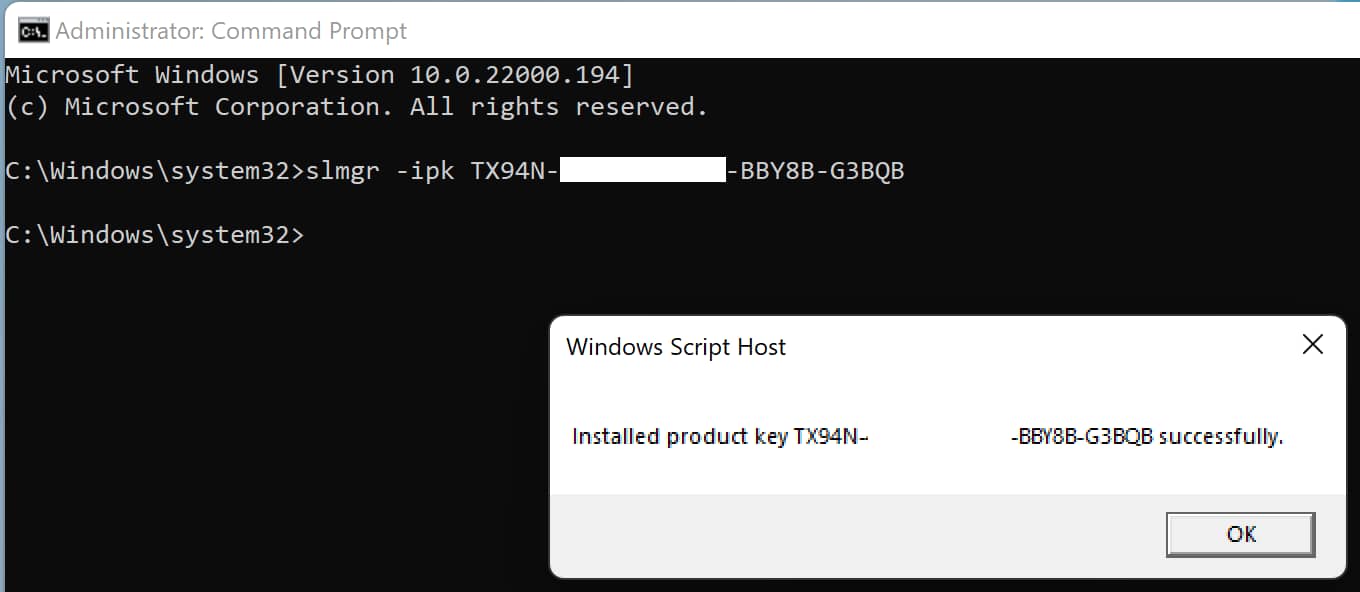
If the product key has been accepted, a window should appear with the message “Installed product key successfully”.
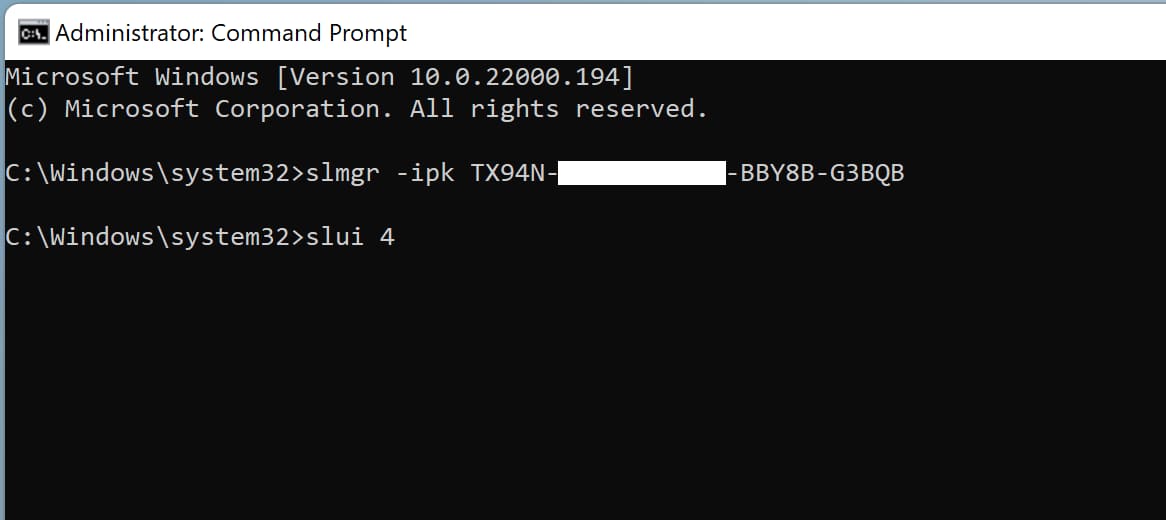
4) Enter the following command: slui 4, and also press the Enter button on the keyboard.
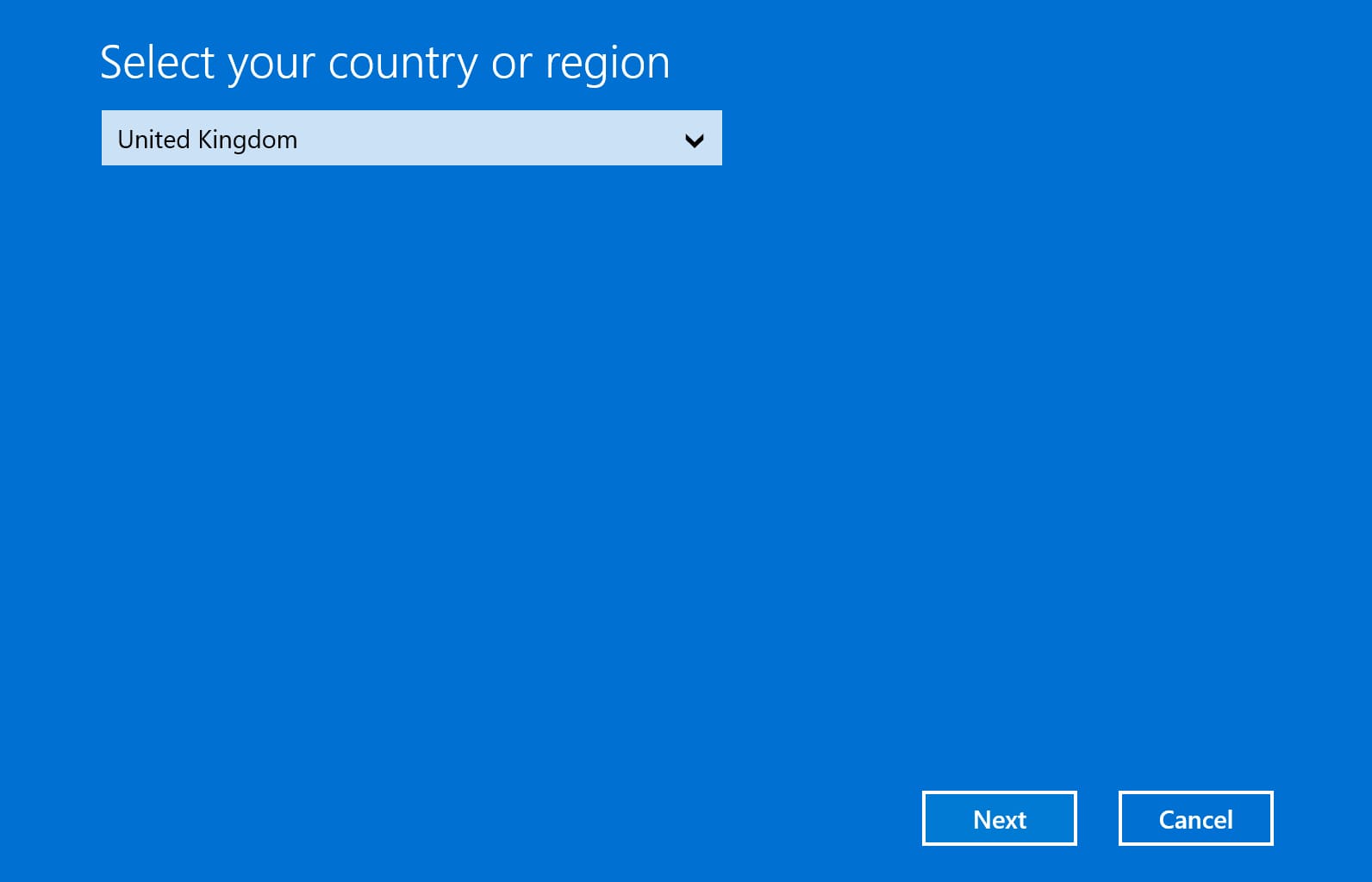
5) Next, you will see a window with the choice of your country of location, for example, from the drop-down menu we select “United Kingdom”. (You choose your location) Then click “Next”.
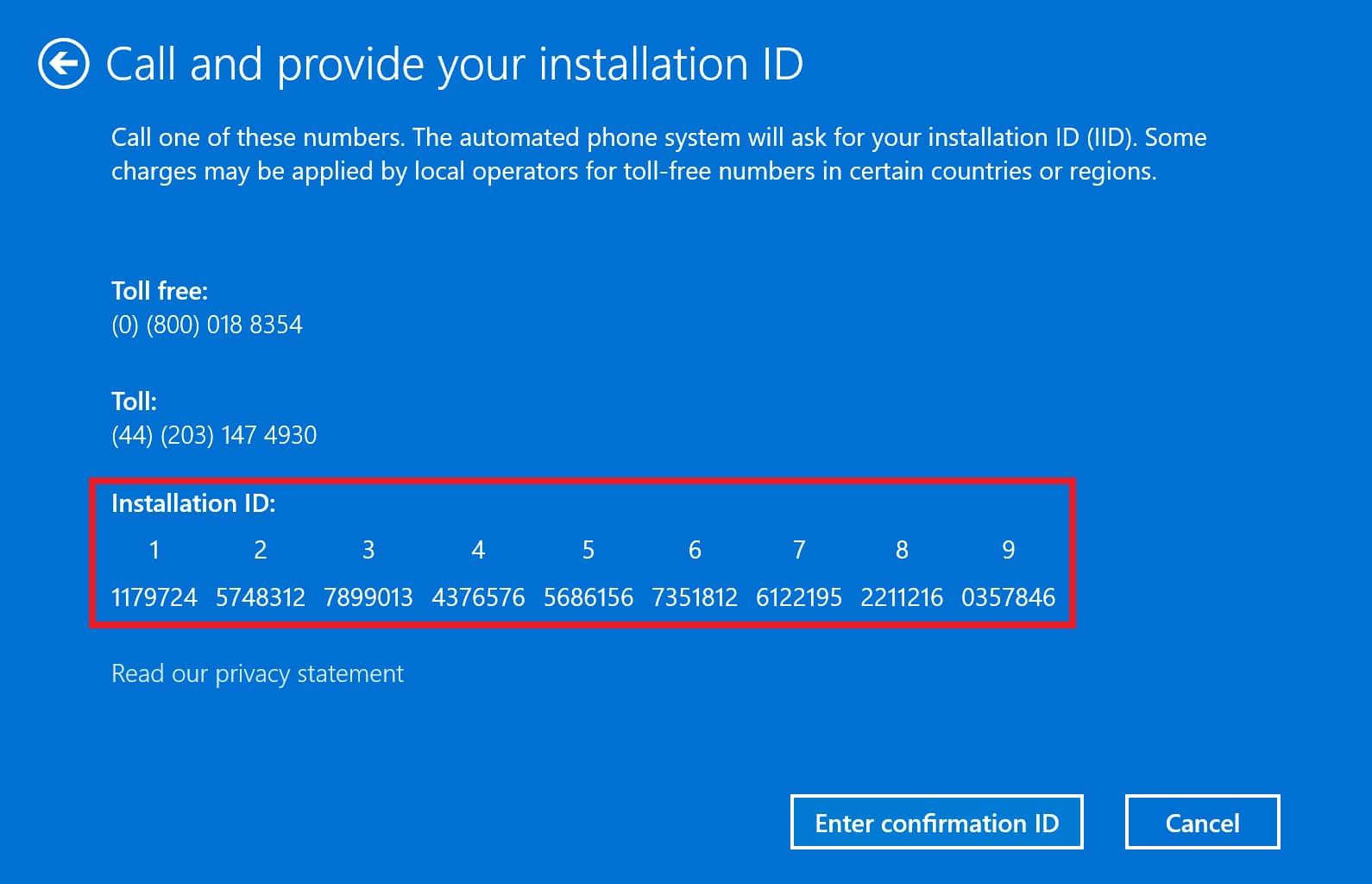
6) Now you will have a window of direct activation by phone.
– We call the specified Microsoft number
– Press 1 on the phone keyboard, agreeing with the recording of the call (or 2, disagreeing).
– Activate Windows, press 1
– Then press 2 (menu “Otherwise”)
– We are at the computer and there is an activation screen in front of us – press 1.
– Now the robot will ask you to enter the installation ID (Installation Code) from step 2 as in the screenshot below. Enter the numbers sequentially, in blocks.
You need to enter your installation code, which is exactly what you have in the activation window program by phone, in our screenshot below is an example.
7) After entering the digits of the job, then he will dictate to you a response confirmation code. You must enter these numbers in the next window in blocks from A to H.
After completing the input of the response numbers from the robot, click “Activate Windows”. If everything is successful, your Windows will be activated.
Now you can restart your PC and check the activation status of your Windows 11, if everything went correctly, the activation state should be “Active”.


