

Blog
How to download, install and activate Windows Server 2022 Standard

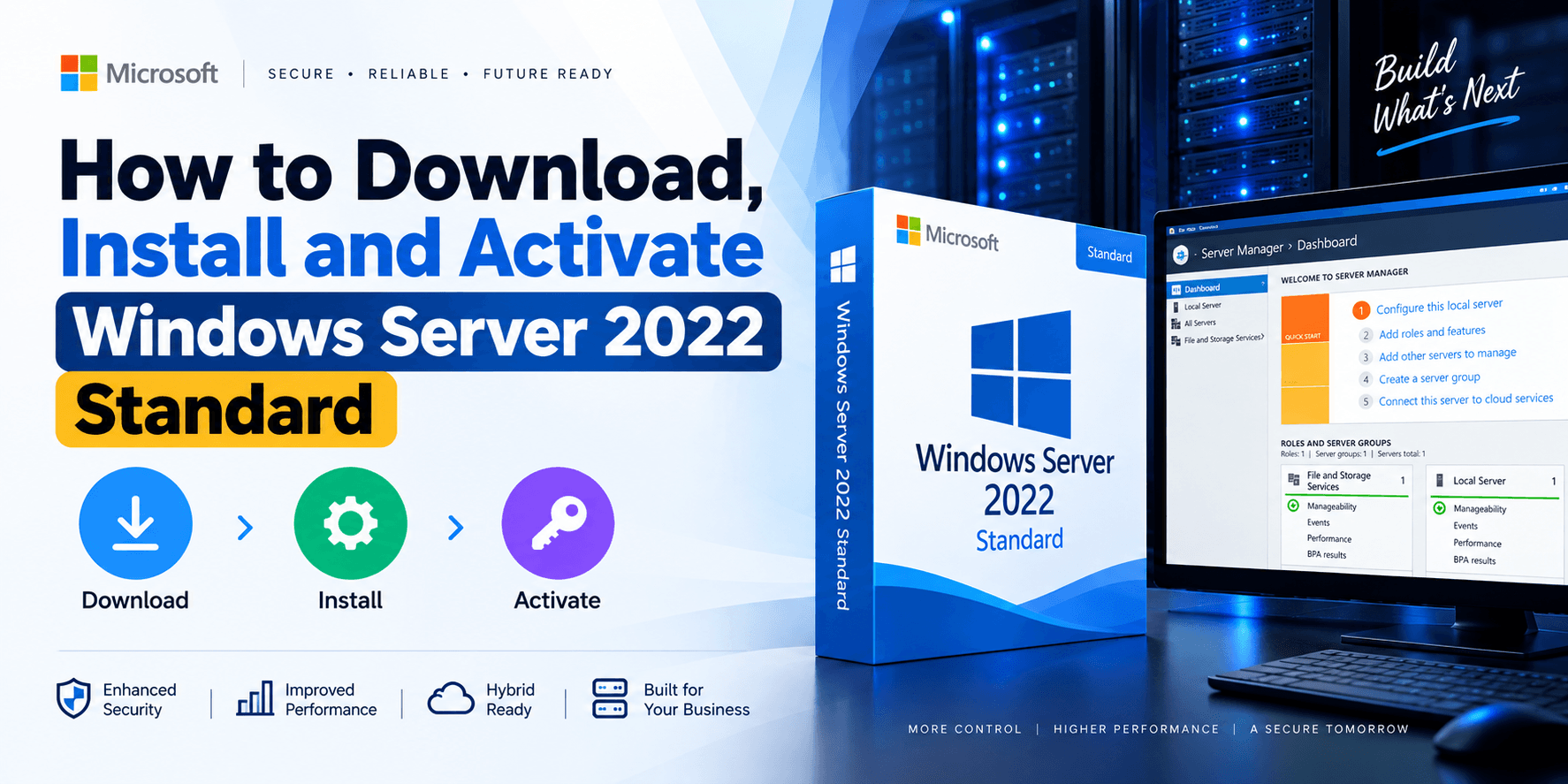
Downloading, installing and activating Windows Server 2022 Standard doesn’t have to be daunting, even with limited IT experience. This guide walks you through the whole process: downloading the Windows Server 2022 Standard ISO from Microsoft, preparing a bootable USB drive, installing the operating system, and activating it with a genuine Windows Server 2022 Standard product key.
The procedure is straightforward and can be handled by anyone with basic IT knowledge — the steps below guide you through each stage in order, plus a troubleshooting section and answers to the most common questions.
Step 1 – Downloading your copy of Windows Server 2022
The first step is to download your software. There is a link to the Microsoft download site in the email we sent with your Genuine Microsoft Product Key. Don’t worry if you don’t have the details to hand – The following link will take you to the correct web page: Click here Once on the page, scroll down until you see the heading – Get started for free. You will see a link that says Download the ISO – click this link and follow the instructions to download the ISO file.Step 2 – Prepare your ISO file
An ISO file contains all the files and programs required to install your copy of Windows Server 2022. However, to install the software, you will need to move the files to some form of removable media. The most practical and easiest to use is a thumb drive. For this purpose, it needs to be at least 8GB and formatted as FAT32. To check whether a thumb drive is FAT32 formatted, see the following instructions: 1. Plug your thumb drive into a Windows Computer and open a File Explorer window 2. Find the Thumb Drive under the “This PC” listing and right-click on it 3. Select Properties from the context menu that pops up 4. On the General Tab, you will see the File System type listed. Most thumb drives are already formatted as FAT32, so this is normally the case. If your thumb drive is already FAT32, then you can skip the next section.How to format a Thumb Drive as FAT32
In the unlikely event that your thumb drive is not FAT32, then the process of converting it is simple. Just follow the steps below. Important – The following procedure will erase all data on the thumb drive, so be sure to check there are no critical files on the drive before proceeding. 1. Plug the thumb drive into a Windows computer and find it in a File Explorer window 2. Right-click on the drive and select the Format option from the contextual menu that pops up 3. Select the FAT32 (Default) option from the File System drop-down menu and tick the Quick Format box 4. Click Start, the process should only take a few seconds, and after it is complete, you are ready to move on to the next stageCopy the ISO File
The next step is to copy the ISO file you downloaded in Step 1 onto your FAT32 formatted pen drive. Once this is complete, you are ready to begin the installation.Step 3 – Installing Windows Server 2022
This step is where some users may experience some minor difficulties. Basically, the procedure involves plugging your Thumb Drive with the ISO into the target server and letting the server boot up using the setup files on the thumb drive. Once this is achieved, the rest of the process is a matter of following the steps in the installation wizard. The main problem that users encounter is getting the server to boot from the thumb drive. If there is no existing Operating System on the server, then the bootup procedure should default to the thumb drive. If that is the case, then you are well on your way to installing Windows Server 2022! Just follow the wizards to complete the installation and then jump to the Activate Windows Server section. Changing the boot order If there are problems at this stage, then you will have to manually force the server to boot from the thumb drive. Unfortunately, how this is achieved differs from server to server, so it is impossible to dictate precise instructions for this step. However, the steps are all fairly similar, covered below is a fairly typical procedure. Intel-Based Server The following instructions describe how to change the boot order on a server that uses an Intel Server board. 1. With the server turned off, plug in your prepared thumb drive 2. Turn the server on and press the F2 key to enter the system BIOS 3. Navigate to the Boot Maintenance Manager option and select the Change Boot Order option to enter the boot menu 4. Use the up and down arrows to navigate to the device you want to boot from (you should see the thumb drive listed as an option) 5. Use the Enter key to select your device and confirm your selection 6. Press the F10 key to save your changes and reboot the machine If everything worked as expected, your Windows Server 2022 installation should now begin. Follow the installation wizards to complete the installation process.Step 4 – Activating Windows Server 2022
The final step is to activate your copy of Windows Server 2022. For this, you will need to have a note of your Genuine Microsoft Product Key in hand. If you don’t have one, don’t worry – bcdkey can supply Genuine Product Keys for Windows Server 2022 Standard for a fraction of the normal cost. The following steps take you through the process of activating your copy of Windows Server 2022 Standard: 1. Run a command prompt as an administrator. To do this, type CMD into the search bar. The Command Prompt app should be listed 2. Right-click on the Command Prompt app and select Run as administrator from the context menu that appears 3. Enter the following command (replacing the Xs with your product key): Dism /online /Set-Edition:ServerStandard /AcceptEula /ProductKey:XXXXX-XXXXX-XXXXX-XXXXX-XXXXX Your copy of Windows Server 2022 should now be activated and good to go! If you have any problems with any stage of the process, then we are here to help. Contact our support team for a fast response to any queries.Frequently Asked Questions
Can I download Windows Server 2022 Standard for free?
Yes. Microsoft provides a free 180-day evaluation ISO. The bits are identical to the retail release, so you can install the evaluation version and activate it as a full Standard edition once you have a genuine product key.
How many virtual machines can I run with a Windows Server 2022 Standard license?
Two virtual machines per licensed host — the same rule that applies to Windows Server 2019 Standard. If you need more than two VMs on one host, look at Windows Server 2022 Datacenter instead.
Do I need to reinstall Windows if I only have the evaluation edition?
No. Run Dism /online /Set-Edition:ServerStandard /AcceptEula /ProductKey:XXXXX-XXXXX-XXXXX-XXXXX-XXXXX with your genuine key to convert the evaluation install to a licensed, activated edition in place.
My server won’t boot from the thumb drive — what should I check?
First confirm the drive is formatted as FAT32 (see Step 2). If it still won’t boot, enter your server’s BIOS/UEFI setup and manually change the boot order so the USB drive is listed before the internal disk — the exact menu names vary by manufacturer.
Can I upgrade Standard to Datacenter later without reinstalling?
Yes, using the same Dism /Set-Edition command with a Datacenter product key. Microsoft only allows moving up in edition this way, not from Datacenter back down to Standard.
What’s different between Windows Server 2022 Standard and Windows Server 2019 Standard?
2022 adds newer security features such as Secured-core server support and TLS 1.3, plus a later end-of-support date. Licensing works the same way in both versions — Standard covers up to two virtual machines per license.
Conclusion
Downloading, installing and activating Windows Server 2022 Standard comes down to four steps: grab the evaluation ISO from Microsoft, prepare a bootable FAT32 thumb drive, run through the installation wizard, and activate with a genuine product key using the Dism command above. If you still need a key, bcdkey can supply genuine Windows Server 2022 Standard product keys for a fraction of the normal cost.