

Blog
How to Activate Microsoft Office by Phone (Step-by-Step Guide)

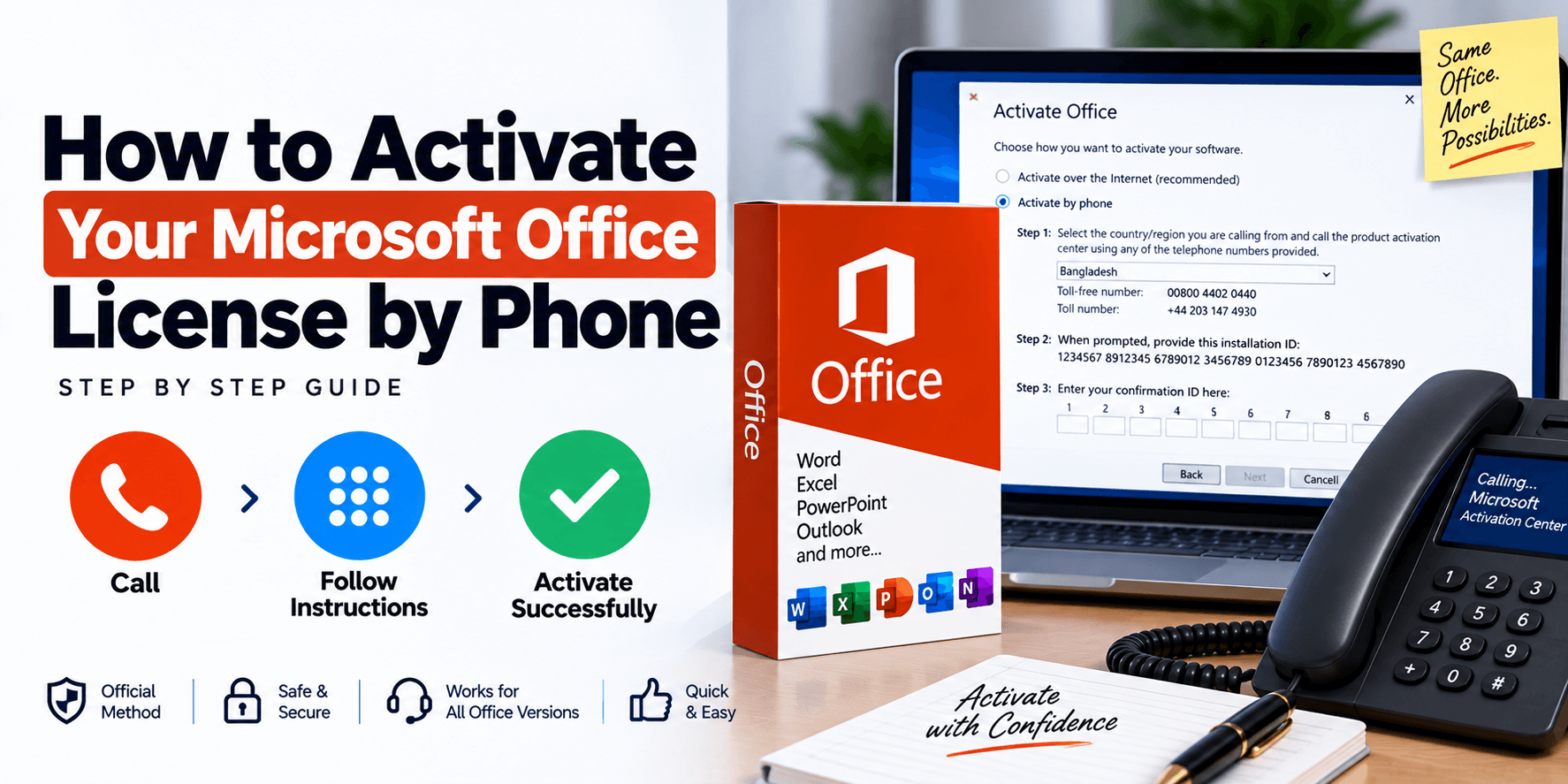
You can activate Microsoft Office by phone in about five minutes using the Office Activation Wizard. Choose “I want to activate the software by telephone”, copy the Installation ID shown on screen, get a Confirmation ID from Microsoft’s Product Activation Center or a Get Confirmation ID (GETCID) tool, and enter it in the wizard. This guide walks you through every step with screenshots, and covers the most common phone activation problems and how to fix them.
What Is Microsoft Office Phone Activation?
Phone activation is an alternative to online activation for Office keys that support it. Instead of Office contacting Microsoft’s servers automatically, the activation is completed by exchanging two codes:
- Installation ID: a long number (usually 9 groups of 7 digits) generated by the Activation Wizard. It is unique to your product key and your PC.
- Confirmation ID: a response code of 8 blocks (A to H) that unlocks Office on that PC. You get it from Microsoft’s Product Activation Center or a GETCID tool using your Installation ID.
Once you enter a valid Confirmation ID, Office is activated permanently on that computer, exactly the same as an online activation.
When Should You Activate Office by Phone?
Use phone activation when:
- Your product key is sold as a phone activation key, such as the Office 2024 Pro Plus phone activation key
- Online activation fails or the key has reached its online activation limit
- The PC has no reliable internet connection or sits behind a restrictive firewall
- You are reinstalling Office on the same computer and online activation is refused
Note: phone activation works for one-time-purchase Office versions such as Office 2016, 2019, 2021 and 2024. Microsoft 365 subscriptions do not support telephone activation, so the option is greyed out for them.
Before You Start: What You Need
- Office installed on your PC, in the same edition as your product key (for example, Professional Plus for a Pro Plus key)
- Your 25-character Office product key
- A phone, or a browser to use a Get Confirmation ID tool
- About 5 minutes, and a notepad or text file to copy the codes accurately
If Office isn’t installed yet, remove any older Office versions first, then install it using the download link included with your key. Buyers from bcdkey.net receive the key, download link and instructions by email.
How to Activate Microsoft Office by Phone (Step-by-Step)
The screenshots below show Office Professional Plus 2021, but the same steps apply to Office 2016, 2019 and 2024.
Step 1: Open Office and Enter Your Product Key
Open any Office app, such as Word or Excel. If the Activation Wizard or a product key prompt doesn’t appear automatically, go to File > Account and click Change Product Key (or Activate Product). Enter your 25-character key carefully and click Install or Continue. When Office asks you to activate, the Microsoft Office Activation Wizard opens.
Step 2: Choose “I Want to Activate the Software by Telephone”
In the Activation Wizard, Office asks how you want to activate your software. Select I want to activate the software by telephone and click Next. If nothing happens when you click Next, press the Enter key on your keyboard instead.

The wizard also shows how many days you can still use Office before it becomes unlicensed. You have time, but it’s best to activate right away.
Step 3: Select Your Country and Copy the Installation ID
The next screen lists three steps. Under Step 1, choose the country or region you are in from the drop-down menu. The wizard then shows the Microsoft Product Activation Center phone numbers for that country, usually a mobile/toll number and a toll-free number.
Under Step 2, you’ll see your Installation ID. Copy it exactly, digit by digit. Don’t close this window, because you will enter the Confirmation ID in the boxes under Step 3.

Step 4: Get Your Confirmation ID
You can get the Confirmation ID in two ways.
Option A: Use a Get Confirmation ID tool (fastest). Open our Get Confirmation ID (GETCID) tool, or the GetCID website, and paste your Installation ID into the field. Complete the “I’m not a robot” check and click GET. The Confirmation ID appears in 8 blocks that match the A to H boxes in the Activation Wizard.

Option B: Call Microsoft’s Product Activation Center. Call the number shown in the wizard for your country. The automated system asks you to enter or read out your Installation ID, then gives you the Confirmation ID. Write each block down carefully.
Step 5: Enter the Confirmation ID in the Activation Wizard
Go back to the Activation Wizard. Under Step 3, type the Confirmation ID into boxes A to H, one block per box, in the same order you received them. Double-check every digit, then click Next.

This example screenshot shows Office Professional Plus 2019 with a Dutch interface. The layout of the boxes is the same in every language.
Step 6: Confirm Office Is Activated
If the Confirmation ID is correct, the wizard shows a message that your copy of Microsoft Office is activated. Click Close, then close and reopen any open Office programs so the change takes effect.

How to Check Your Office Activation Status
To confirm that phone activation worked, open Word or Excel and go to File > Account. Under Product Information, you should see Product Activated followed by your Office edition, for example Microsoft Office Professional Plus 2021. If you still see “Product Activation Required”, repeat the steps above.
Troubleshooting Office Phone Activation
The telephone option is greyed out
This happens when the installed Office is a Microsoft 365 subscription version, which doesn’t support phone activation. Uninstall it and install the edition that matches your product key.
The Confirmation ID is rejected
Most often this is a typing mistake. Check that each block is in the correct box (A to H) and that no digits were swapped. If it still fails, restart the wizard, which may generate a new Installation ID, and request a fresh Confirmation ID.
The GETCID tool says the Installation ID is blocked or not valid
This means the key cannot be activated by phone with that Installation ID, usually because it has already been used too many times or doesn’t match the installed edition. Contact your seller with your order number and a screenshot of the Activation Wizard.
“Telephone activation is no longer supported for your product”
According to Microsoft’s Activation Wizard support page, you can ignore this message and call the Product Activation Center number for your country directly.
The key is not accepted at all
Make sure the installed Office edition matches the key. A Professional Plus key won’t activate Office Home & Business or Standard, and a 2021 key won’t activate Office 2019. If app icons disappear after reinstalling, see Office app icon or shortcut is missing.
Phone Activation vs Online Activation
| Phone activation | Online activation | |
|---|---|---|
| How it works | Installation ID and Confirmation ID | Automatic over the internet |
| Time needed | About 5 minutes | Under a minute |
| Internet on the PC | Not required for the activation step | Required |
| Result | Permanently activated Office | Permanently activated Office |
Frequently Asked Questions
Is activating Office by phone safe?
Yes. Phone activation is an official Microsoft activation method built into the Office Activation Wizard. It activates Office in exactly the same way as online activation.
How long does Office phone activation take?
Usually about five minutes. Using a Get Confirmation ID tool is often faster than calling the Product Activation Center.
Do I need to activate again after a Windows update?
No. Normal Windows and Office updates keep your activation. You may need to activate again if you reinstall Windows or replace major hardware.
Which Office versions can be activated by phone?
One-time-purchase versions such as Office 2016, 2019, 2021 and 2024 that come with a phone-activation-capable key. Microsoft 365 cannot be activated by phone.
What is the difference between the Installation ID and the Confirmation ID?
The Installation ID is generated by your PC and identifies your installation. The Confirmation ID is the response you get back from Microsoft or a GETCID tool that completes the activation.
Can I use the same Confirmation ID on another computer?
No. Each Confirmation ID only works with the Installation ID it was generated for, which is tied to one PC.
Conclusion
To activate Microsoft Office by phone, select telephone activation in the Activation Wizard, copy your Installation ID, get your Confirmation ID from the Product Activation Center or a GETCID tool, and enter it in boxes A to H. Once you see the “activated” message, Office is fully licensed on your PC.
Need a key? Browse Office 2024 keys, including the low-cost Office 2024 Pro Plus phone activation key, or earlier versions like the Office 2021 Pro Plus phone activation key and Office 2019 Pro Plus phone activation key.